How To Use Claude Like A Pro · Part 4 of 6
How to Add and Use Skills in Claude
When you have explained the same method three times, it may be time to write it down properly.
Some jobs have a method. Extract the actions. Preserve the uncertainty. Use the agreed headings. Do not invent a deadline just because the table looks lonely.
Claude Skills let you package that method for reuse. I would begin with one narrow routine. A Skill called “Make all business excellent” has already lost control of the brief.
Where are Skills in Claude?
Open Customize > Skills. On individual accounts, check that code execution and file creation is enabled under Settings > Capabilities; an updated layout may call it Create and edit files. Workspace policies can control availability. Follow Claude’s current enablement guide if the section is missing.
For a custom package, use +, + Create skill, then Upload a skill. Upload the ZIP and enable the Skill. This guide covers the Claude app; Claude Code uses a separate file-based setup.
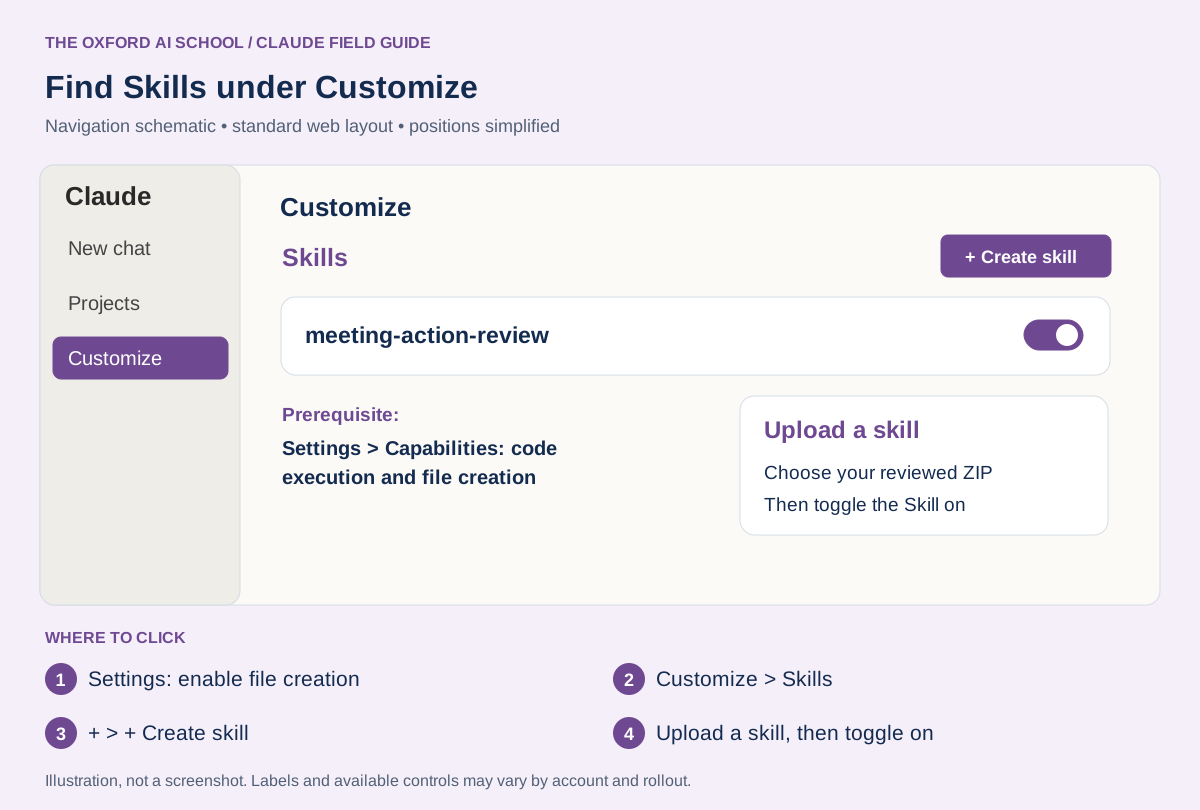
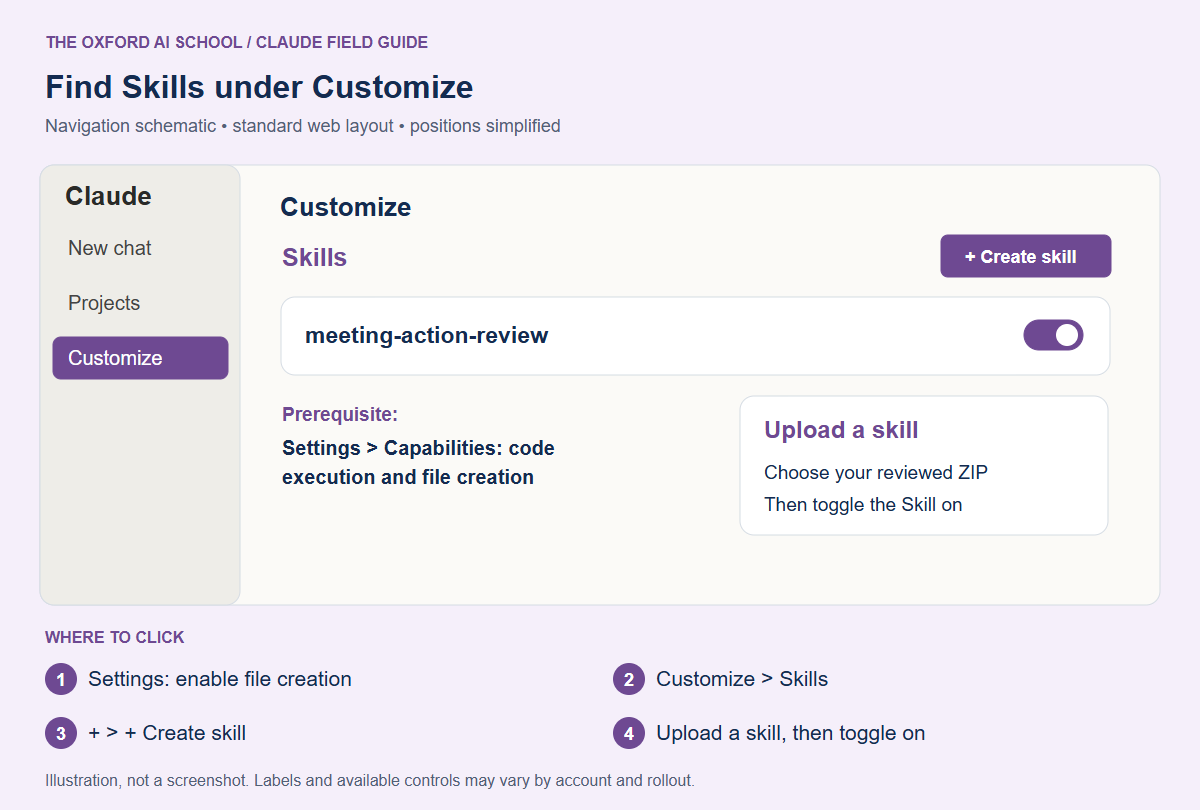
Settings: enable file creation → Customize > Skills → + > + Create skill → Upload a skill, then toggle on
Skills, Projects and Connectors do different jobs
A Project keeps reusable background for related work. A Skill supplies a task-specific procedure. A Connector provides access to an external service. Claude’s Skills overview explains the distinction.
For a meeting routine, the Project might hold agreed terminology, the Skill might define the action-list format and a Connector might retrieve the meeting source. None of those automatically proves the result is correct.
I would first solve the method with pasted fictional notes. Add external connections only if retrieving information is part of the real problem. Otherwise you risk automating a muddle at an impressive speed.
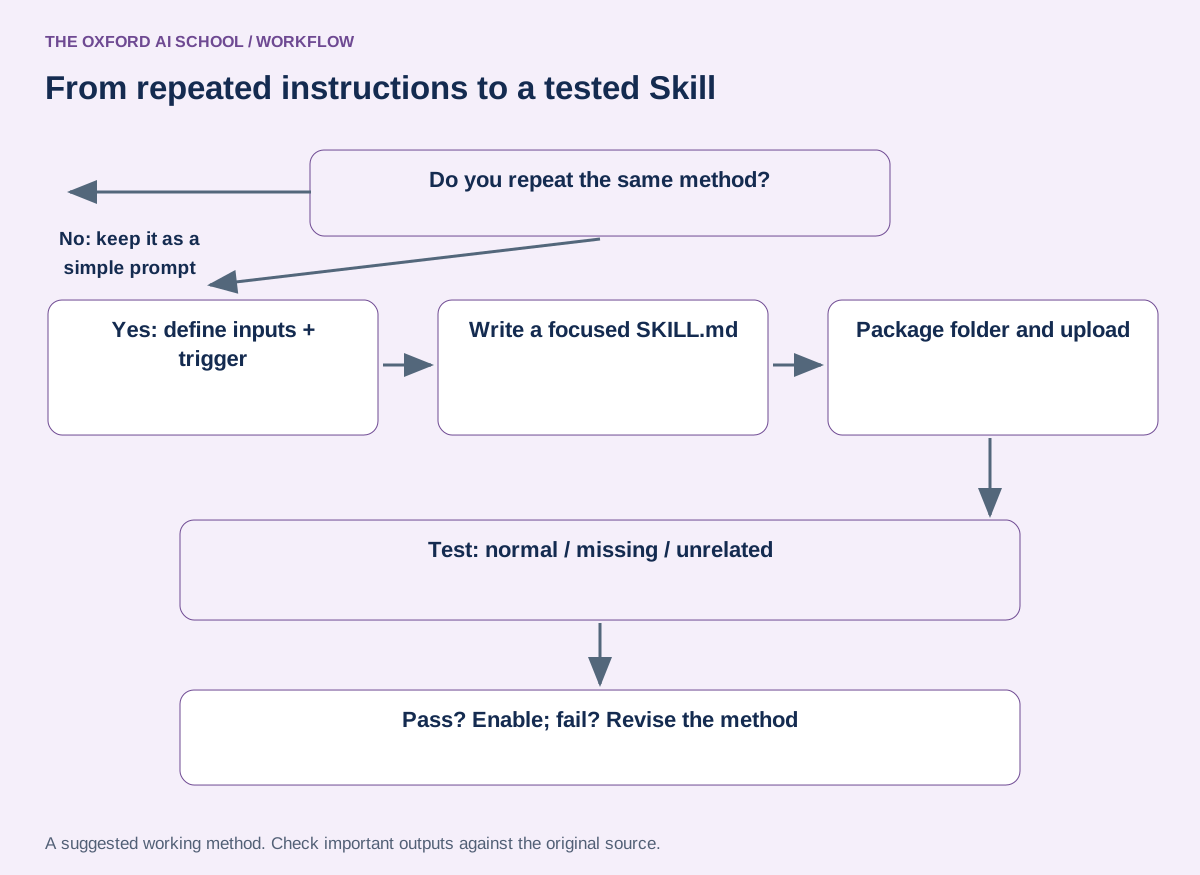
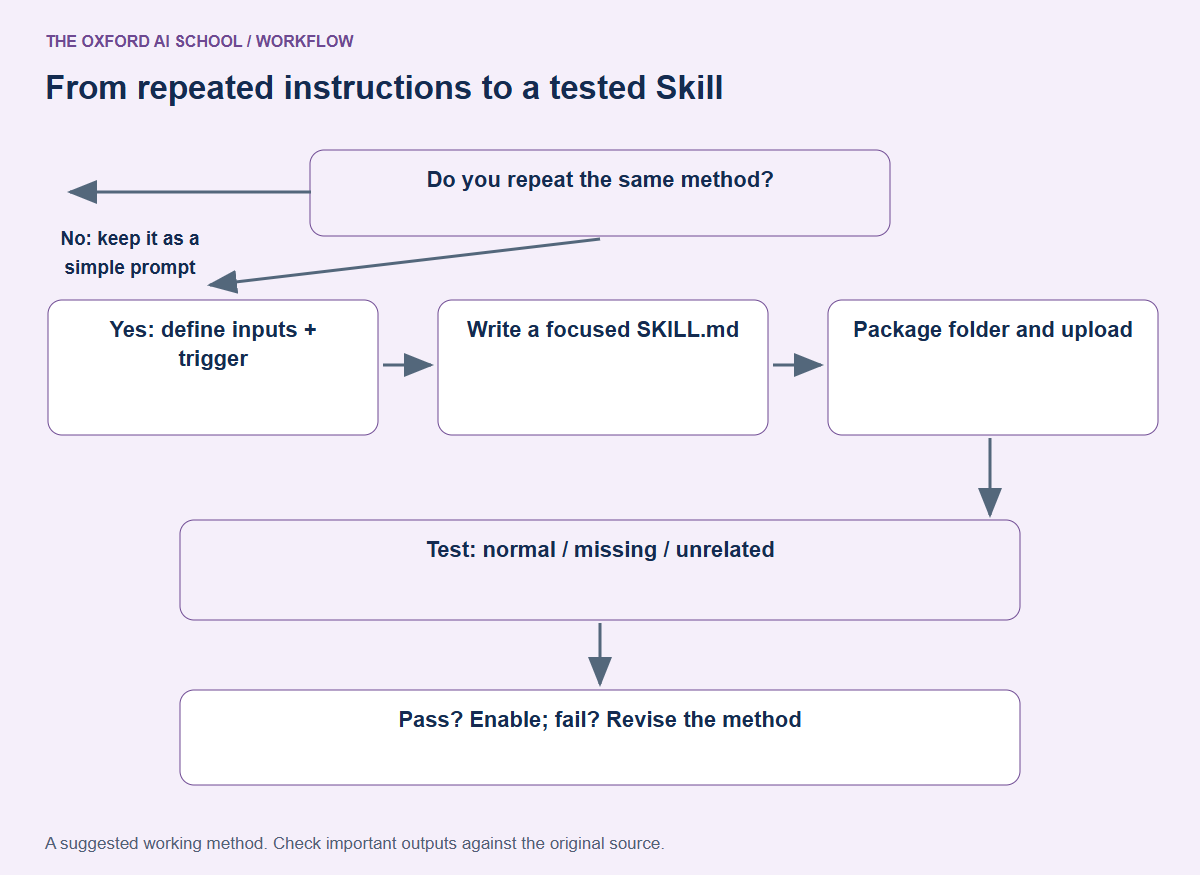
Read the flowchart as text
- Do you repeat the same method?
- No: keep it as a simple prompt
- Yes: define inputs + trigger
- Write a focused SKILL.md
- Package folder and upload
- Test: normal / missing / unrelated
- Pass? Enable; fail? Revise the method
Create a simple custom Skill
A Skill package starts with a folder containing its Markdown instructions and required metadata. Use a clear name and description that says when to apply it. Begin with plain instructions; add supporting files only when the routine needs them.
Here is an original starter for fictional meeting notes. It deliberately preserves unknown owners and dates. Put it in meeting-action-review/SKILL.md and package that folder as a ZIP. A starter package is included with this page.
A small SKILL.md to adapt
---
name: meeting-action-review
description: Turn supplied meeting notes into a checked action list. Use when asked to extract actions, owners and deadlines from meeting notes.
---
# Meeting action review
Use only the notes supplied for this task.
Separate explicit decisions, proposed actions and unresolved questions.
For each explicit action, produce: action, owner, deadline, supporting excerpt.
If an owner or deadline is absent, write “Not stated”.
Do not treat a suggestion as an agreed action.
End with a list of gaps a person needs to resolve.
If no meeting notes are supplied, ask for them before producing an action list.
Check it: A small SKILL.md to adapt
Read every instruction before uploading. Test with fictional notes whose correct interpretation you know.
Download the starter Skill ZIP · Read the Skill before uploading
Write the description around the trigger
“Helpful business assistant” gives Claude little reason to pick one Skill over another. “Extract actions, owners and deadlines from supplied meeting notes” identifies a recognisable request.
The custom Skills guide recommends focused workflows and incremental testing. My addition is to write down an exclusion: what should this Skill not do? For this example, it should not draft customer promises or treat a brainstorming list as an approved plan.
Keep separate routines separate when their decisions differ. A writing checklist and an invoice-checking routine may share a company name, but that is not a reason to put them in the same instruction soup.
Test a Skill in three directions
- Normal request: supply notes with one explicit action, owner and deadline. Check all three.
- Incomplete request: omit the deadline. The output should say it is not stated.
- Unsuitable request: ask a different question. Check that the Skill does not force unrelated work into its template.
Use this fictional input: “Maya will circulate the draft on Friday. The team discussed whether to extend opening hours; no decision was made.” There is one explicit action. The discussion about hours remains unresolved.
If Claude does not use the Skill, check it is enabled and name it explicitly in the request. If the method itself is wrong, revise the instructions. Reinstalling the same mistake is not a debugging technique.
Test the meeting action Skill
Use the meeting-action-review Skill on these fictional notes:
Maya will circulate the draft on Friday. The team discussed whether to extend opening hours; no decision was made.
Show the action list and unresolved questions. Keep source uncertainty intact.
Check it: Test the meeting action Skill
Expect Maya’s action and Friday deadline. Extending opening hours must not appear as an agreed action.
Review Skills as working procedures
Only upload packages you trust and have reviewed. Skills can include code and supporting resources, so inspect those too. For a first writing or formatting routine, there is usually no need to add executable machinery.
Keep an owner, a revision date and a few known test cases beside your Skill. Recheck after editing the method or changing the inputs. Disable an obsolete Skill rather than hoping Claude knows it has retired.
The useful measure is consistency on real work. If every result still needs the same correction, put that correction into the method and test again.
Sources and product notes
Official documentation checked on 25 October 2026. This guide focuses on the Claude web app; availability, wording and organisation controls can differ. Examples and working methods are original teaching suggestions, with fictional practice material.
How to Add and Use Skills in Claude: frequently asked questions
What is a Claude Skill?
A Skill is a package of procedural instructions and, where needed, supporting resources for a specific task.
Where do I add Skills in Claude?
Open Customize > Skills. For a custom ZIP, use +, + Create skill and Upload a skill, then enable it.
Why can I not see Skills?
Check the required code execution and file creation capability and any organisation policy. Labels and access can vary with the account layout.
Do I need to code to make a Skill?
A simple Skill can use plain Markdown instructions and required metadata. Scripts are optional and should be added only for a clear need.
What is SKILL.md?
It is the main Markdown instruction file inside the Skill folder, beginning with metadata that identifies the Skill and when it should be used.
Why is Claude not using my Skill?
Check it is enabled, tighten the trigger description and try naming the Skill in the request. Then test whether the workflow fits the task.
Is a Skill the same as an MCP server?
No. A Skill defines a method. MCP is a standard used to connect external tools and data. They can work together.
Should I install Skills downloaded from the internet?
Review the source, instructions, code and bundled files first. Use trusted packages and test with fictional information before using business material.