How To Use Claude Like A Pro · Part 1 of 6
How to Use Claude Projects Effectively
Stop introducing your business every Monday. Give Claude a useful brief once, then keep it in order.
You explain the business. You explain the audience. You explain that “unlocking transformational synergies” is not how you speak. On Tuesday, you do it again.
I would use Claude Projects to reduce that repetition. The trick is to give each Project one recognisable job. “Autumn customer newsletter” is a useful start. “Everything I have ever thought about marketing” is a loft conversion waiting to happen.
Where are Projects in Claude?
For the standard chat version, open Projects in the left sidebar, choose + New Project and give it a clear name. On the Project page, use the knowledge area to add references and Set project instructions to save working rules. See the official setup steps.
Anthropic is also rolling out a new Projects beta, starting with selected Claude Code users and some migrated Pro and Max accounts. Its Library and thread layout differs. This guide’s illustration shows the standard chat workflow; check the current Projects overview if your screen differs.
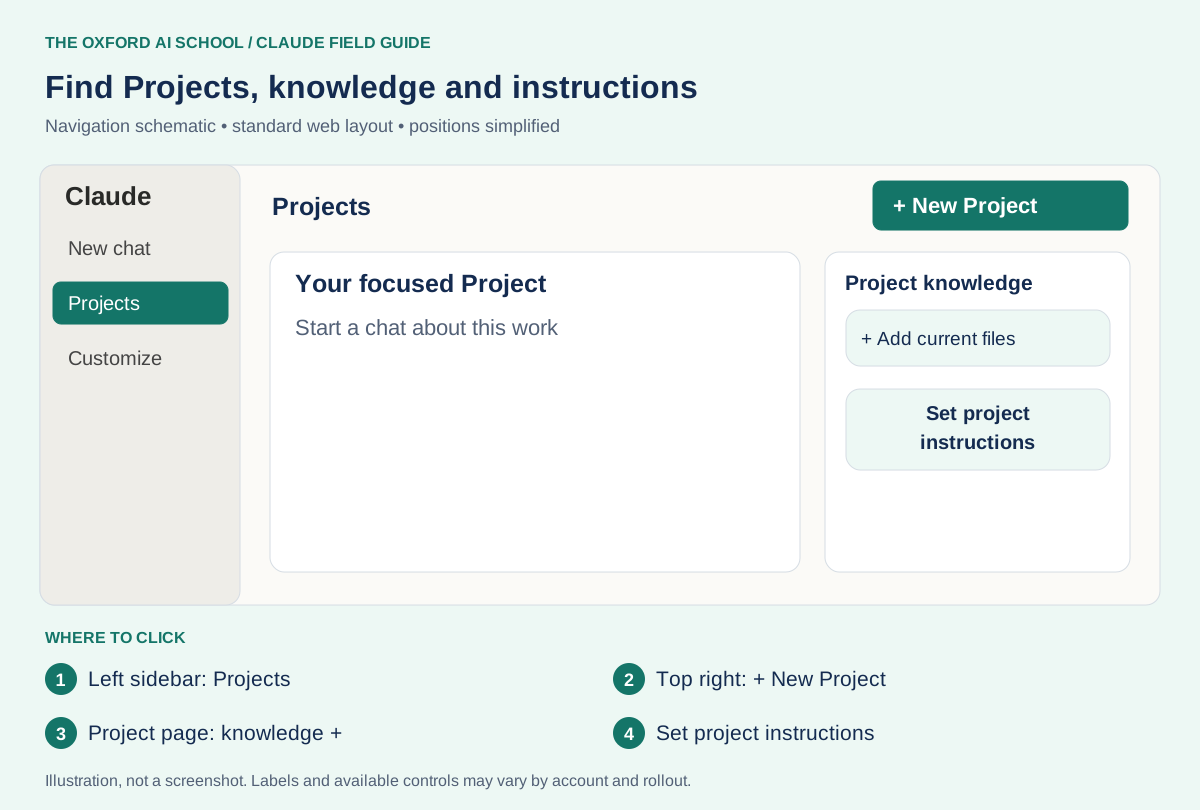
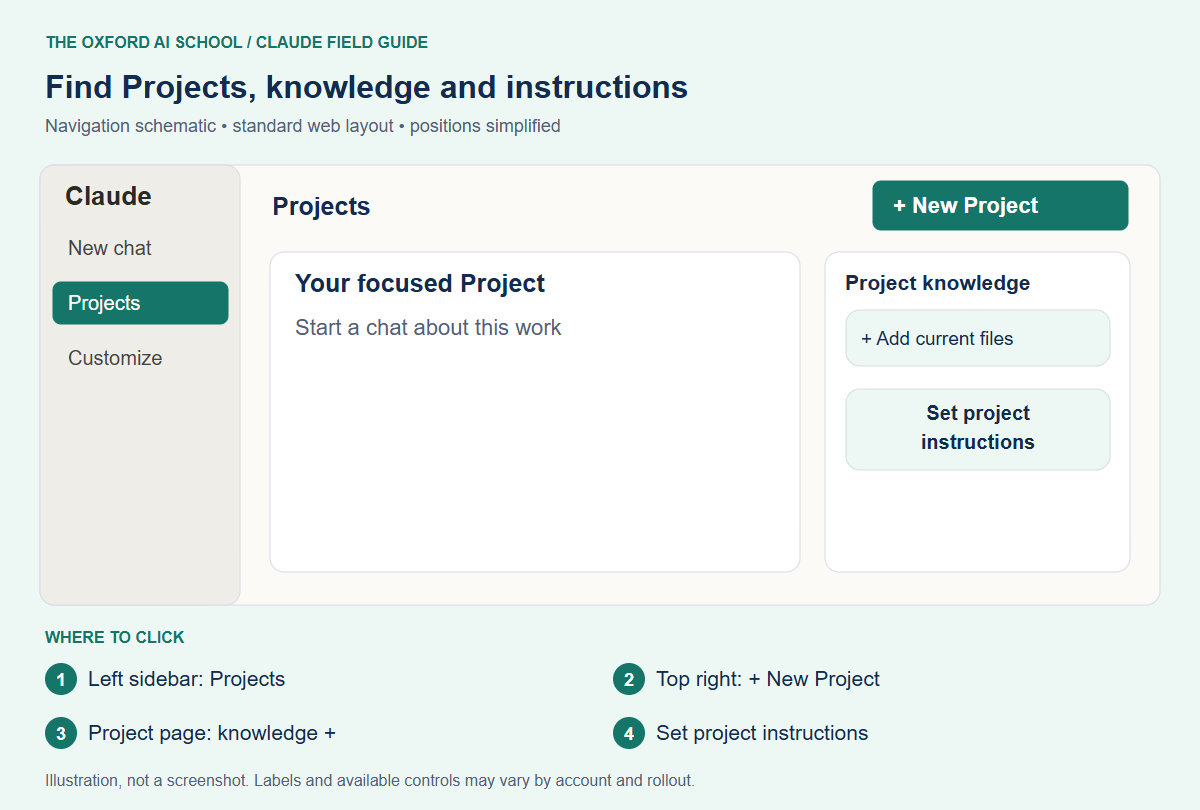
Left sidebar: Projects → Top right: + New Project → Project page: knowledge + → Set project instructions
What should you put in a Claude Project?
I would begin with three things: a one-page brief, the current facts and one good example of the finished work. The brief explains the goal and audience. The facts establish what is true. The example shows what “good” looks like.
A fictional newsletter Project
- Business brief: a local bookkeeping firm, its customers and the purpose of its newsletter.
- Current services: approved descriptions, contact details and dated prices.
- Voice example: one approved newsletter, with a note explaining what to copy about its style.
- Instructions: British English, practical headings, no invented offers and no unsupported claims.
Label older examples clearly. A brilliant email from last year becomes less brilliant if Claude recycles its expired discount.
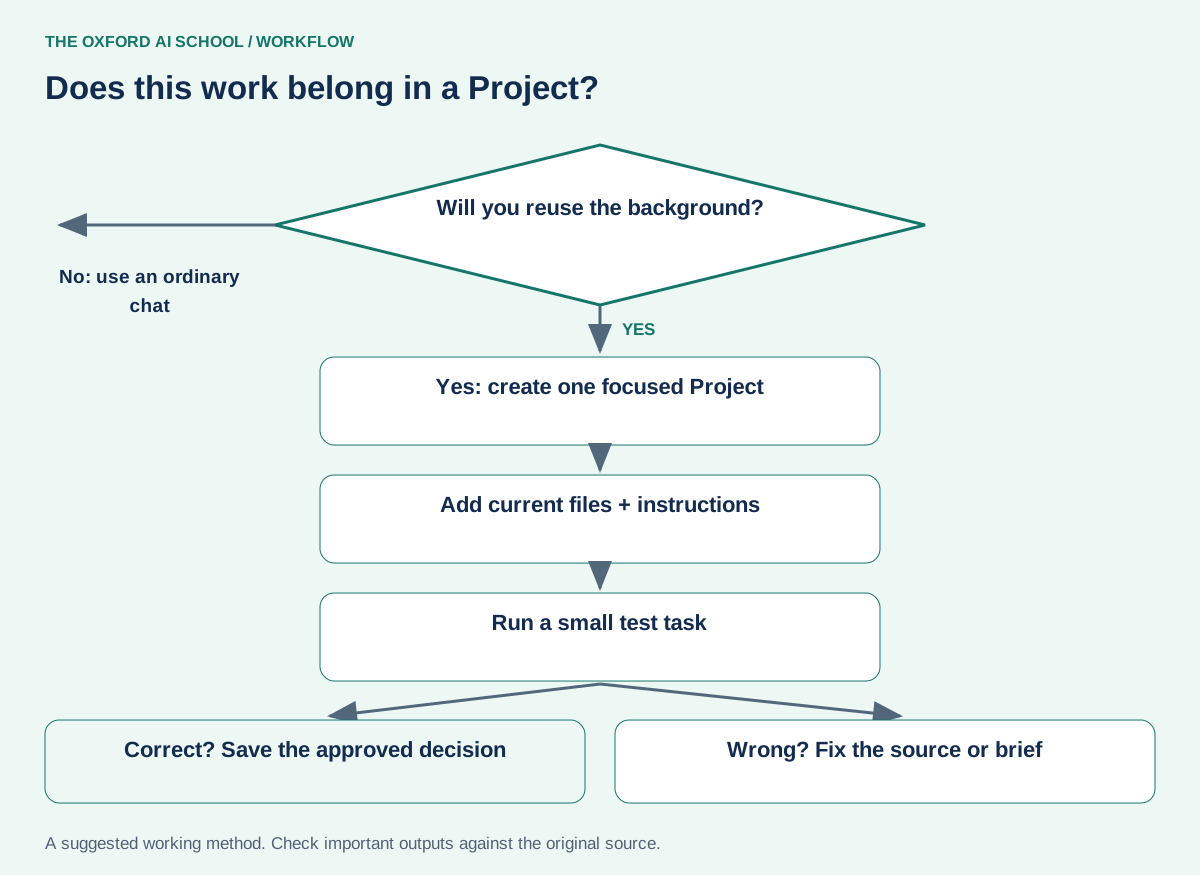
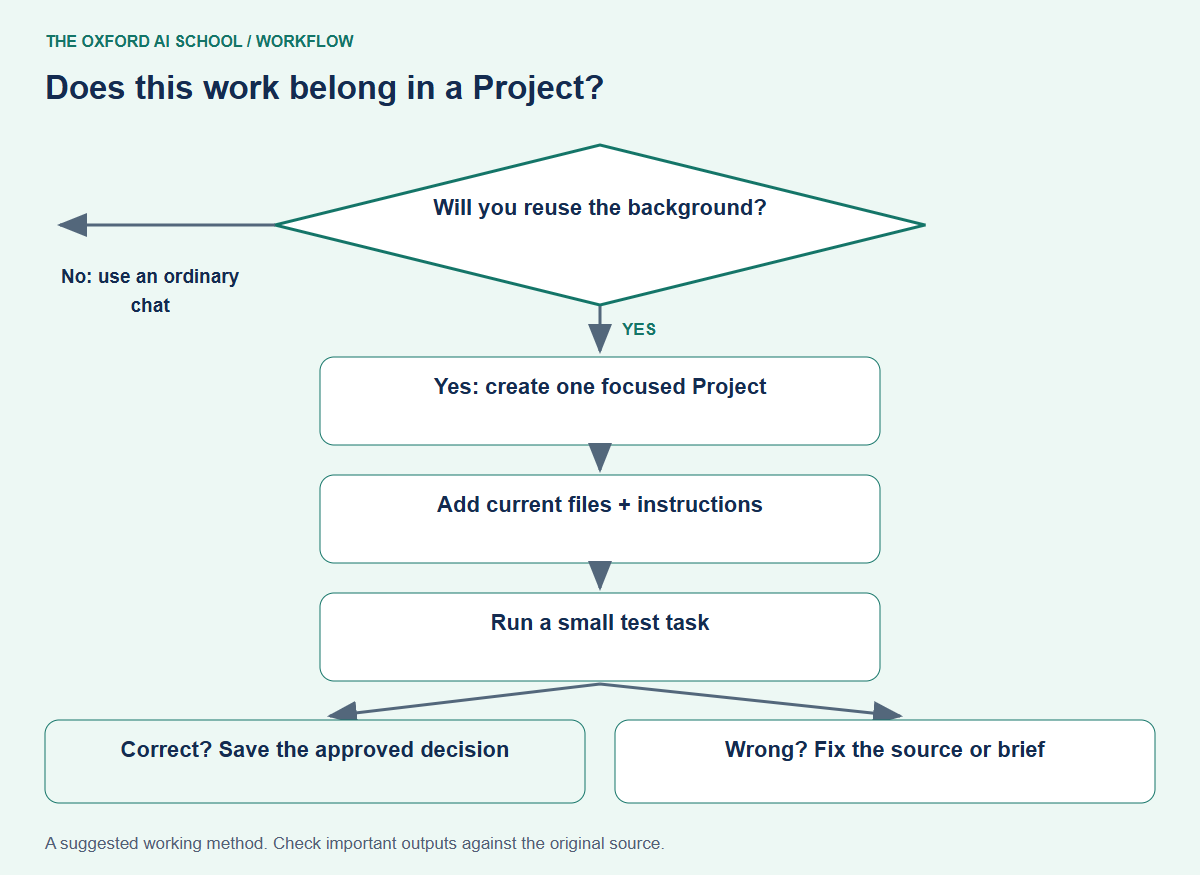
Read the flowchart as text
- Will you reuse the background?
- No: use an ordinary chat
- Yes: create one focused Project
- Add current files + instructions
- Run a small test task
- Correct? Save the approved decision
- Wrong? Fix the source or brief
Write project instructions that make decisions easier
Put enduring working rules in the instructions. Put changing facts in dated documents. Keep a single chat’s immediate request in that chat. This makes updates easier and reduces the chance of two competing versions of the same rule.
Describe your audience, preferred structure and what to do when information is missing. The Project name alone is not an adequate brief. Claude’s setup guidance says the name and description are not available to Claude, so repeat the useful background in the instructions or reference material.
Project instructions to adapt
This Project supports [specific recurring job] for [audience].
Use British English, short paragraphs and concrete examples.
Use the dated approved facts supplied in this Project. Identify conflicts rather than choosing silently.
Use the example for tone and structure, not for its old facts.
If a price, date or promise is missing, flag it. Do not invent it.
Produce drafts for human review. Never describe a draft as approved.
Check it: Project instructions to adapt
Check that the rules fit this particular job. Remove placeholders before saving.
Use separate chats for separate pieces of work
Keep the newsletter outline, customer questions and final draft in distinct chats when that helps you find them. Start each with a clear deliverable. “Draft the October introduction using the approved service sheet” is easier to assess than “carry on”.
In standard chat Projects, another chat’s conversation is not automatically shared context unless its useful information is added to project knowledge. After approving a decision, write a short decision note and add it to the reference material. Do not assume a Tuesday conversation will brief a Thursday one.
A useful decision note
Record the decision, date, source and owner: “For this campaign, the audience is existing customers; approved by the marketing owner on [date].” Keep proposals separate from decisions. Otherwise a passing idea can acquire a very impressive job title.
Test the Project before trusting the routine
Give it a small task whose answer you already know. Ask it to identify the current service names, explain a customer benefit and flag an intentionally missing price. You are checking source use, tone and its willingness to leave a gap.
If it fails, fix one cause at a time. Remove the obsolete file, clarify which source controls the answer or tighten the instruction. Adding another twelve PDFs is rarely the most elegant response.
A ten-minute Project check
Using this Project’s reference files, draft a 120-word customer update about [topic].
List the files used and the source facts supporting any dates, prices or commitments.
Put missing details under “Questions to resolve”.
Then check the draft against the Project instructions and identify any rule it has not met.
Check it: A ten-minute Project check
Open the named files yourself. A file list is useful evidence to inspect, not proof of accuracy.
Keep your Project useful after the first week
Give someone responsibility for reviewing the files. Replace old information, remove duplicates and keep a short record of important changes. Split the Project when it starts serving two audiences with different rules.
Before sharing a work Project, review who can access the material and whether the account is approved for it. Start practice with fictional documents. If you would hesitate to give a new colleague a folder, pause before giving its contents to a tool.
Your finish line is simple: a fresh task can begin without a long explanation, and its result can be checked against a current source. That is worth more than a beautifully named collection of forgotten chats.
Sources and product notes
Official documentation checked on 25 October 2026. This guide focuses on the Claude web app; availability, wording and organisation controls can differ. Examples and working methods are original teaching suggestions, with fictional practice material.
How to Use Claude Projects Effectively: frequently asked questions
What are Claude Projects?
Claude Projects organise related work with project reference material and instructions. Standard chat Projects contain separate chats; a new Projects beta has a different Library and thread experience.
Are Claude Projects free?
Projects are available on free and paid accounts. Anthropic currently documents a maximum of five Projects for free users; check current account limits before planning a large setup.
What is the difference between project instructions and knowledge?
Instructions tell Claude how to work. Knowledge provides the facts and reference material. Keep changing facts in dated files so they are easier to update.
Can Claude see all chats in a Project?
For the standard chat workflow, do not assume one chat can use another chat’s discussion. Add the approved information to project knowledge. The new Projects beta works differently.
What should I upload first?
Start with a short brief, a current source of facts and one approved example. Add more only when a task needs it.
Why does Claude ignore my Project’s tone?
Make the tone concrete with an example and a short explanation. Remove contradictory instructions and test on a small draft.
How often should I update project knowledge?
Update it whenever the underlying facts change. Give someone responsibility for reviewing prices, policies, dates and superseded decisions.