How To Use Claude Like A Pro · Part 6 of 6
How to Add Connectors in Claude
Less copying between tabs. More care about which account you have just connected.
The information is in another app. The app is in another tab. The tab has somehow joined thirty-seven other tabs. This is where Claude Connectors can help.
A Connector can bring a service’s information and available actions into the conversation. I would start with one service and one clearly defined job. Connecting your whole working life before breakfast is an ambitious way to find out you chose the wrong Google account.
Where do you find Connectors in Claude?
Open Customize > Connectors and use the + control to browse. From a chat, you can also open + > Connectors > Manage connectors. Choose a service, inspect its capabilities and follow its Connect or Install flow. Claude’s Connector guide covers the current navigation.
These are web Connector steps. Desktop extensions and custom remote servers have their own setup requirements. If you are adding a provider URL rather than choosing a listed app, read the MCP guide in this series.
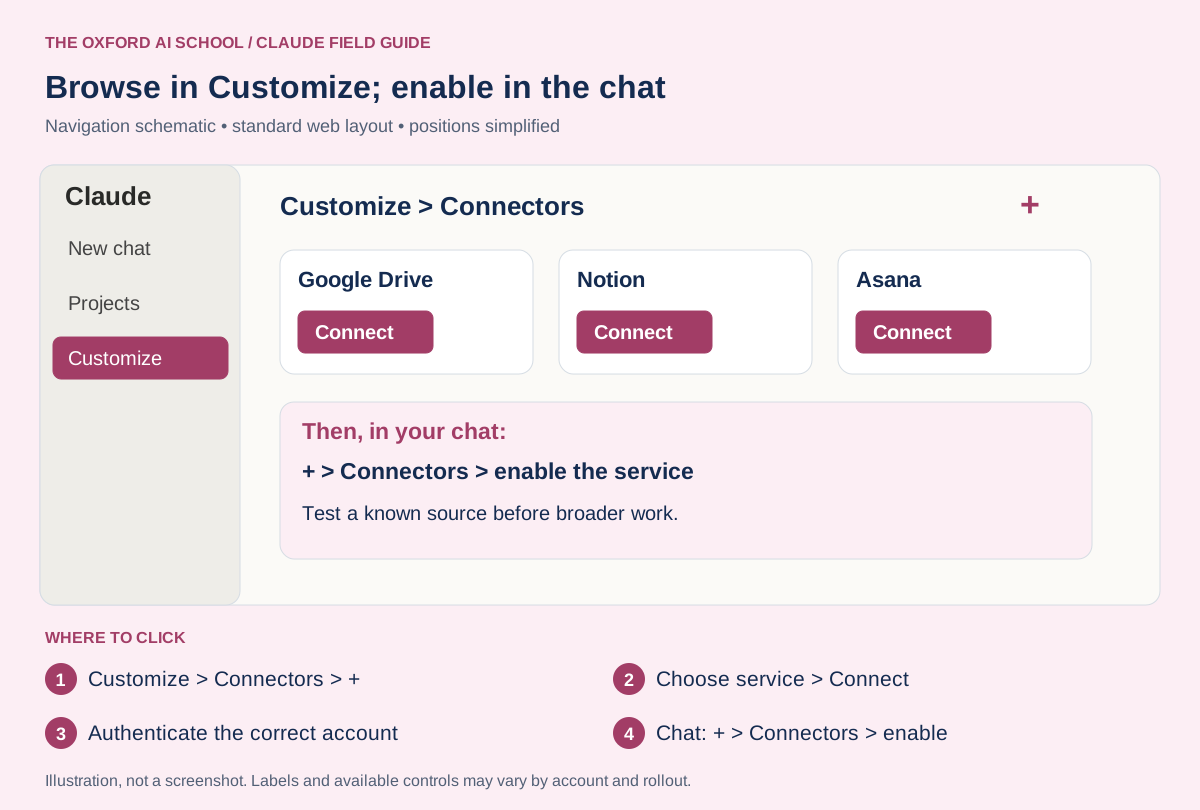
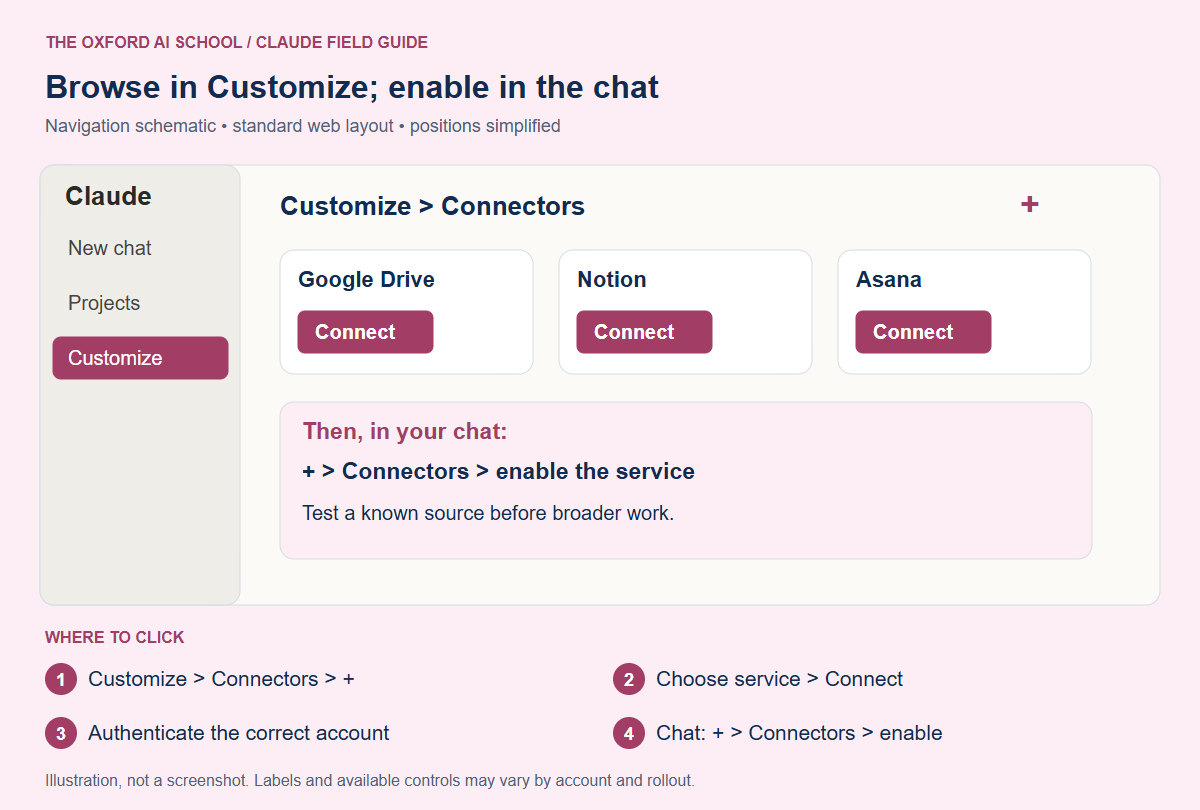
Customize > Connectors > + → Choose service > Connect → Authenticate the correct account → Chat: + > Connectors > enable
Choose the right account before you authenticate
Decide whether this is personal learning or business work. Use the approved Claude account and the intended service workspace. Check the email address shown during authentication rather than clicking through on muscle memory.
Read the requested permissions. If the task only needs a known document, ask why the connection wants broader actions and whether the available controls can narrow them. Get the relevant administrator involved when organisation approval is required.
Record a simple note: service, account, intended job and who owns the connection. “I think somebody connected it last month” is an unhelpful maintenance policy.
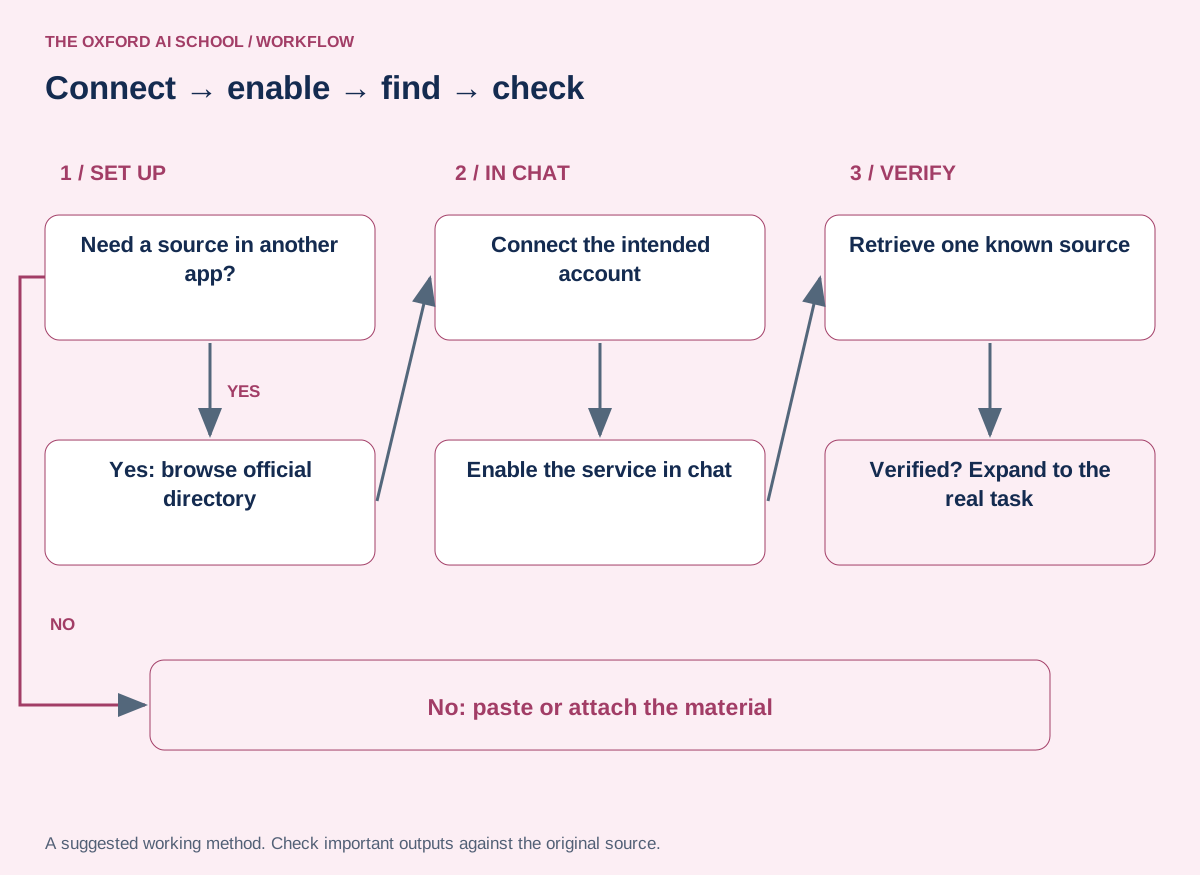
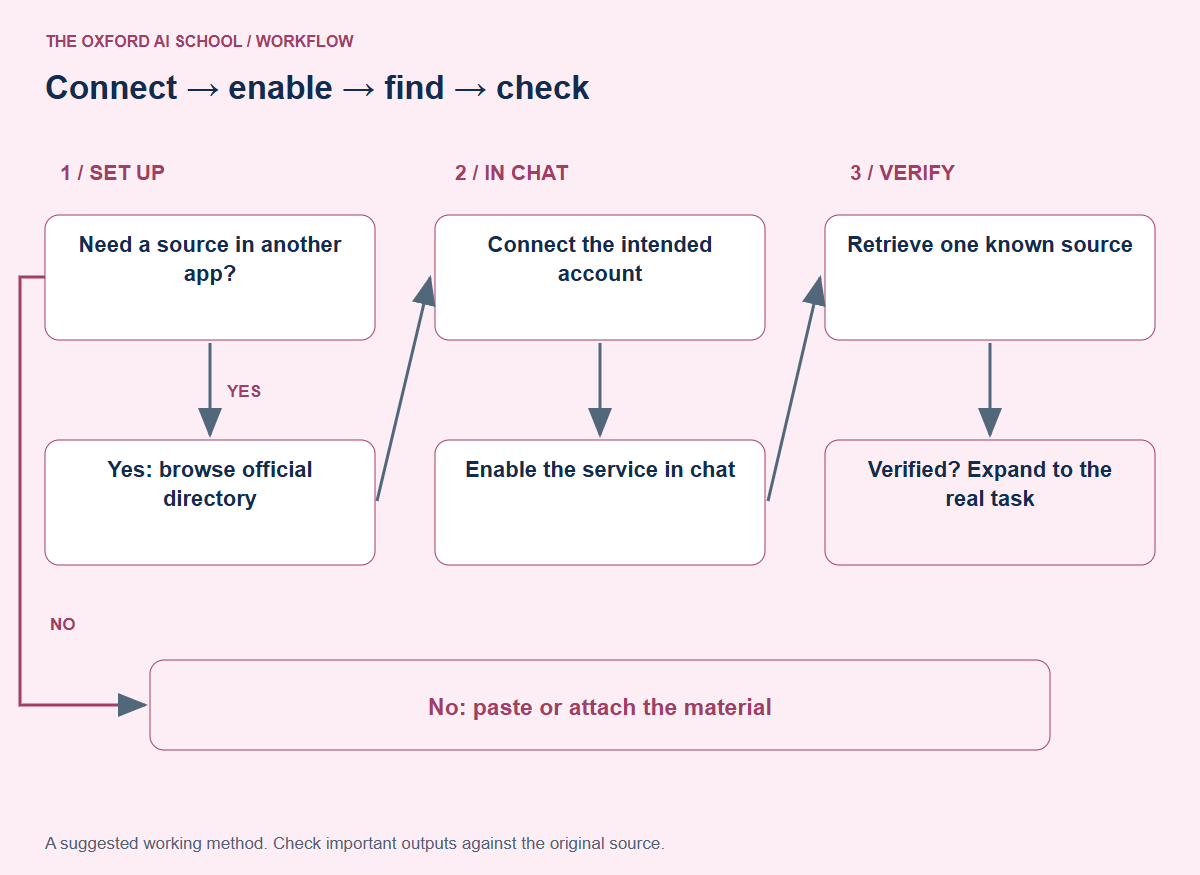
Read the flowchart as text
- Need a source in another app?
- No: paste or attach the material
- Yes: browse official directory
- Connect the intended account
- Enable the service in chat
- Retrieve one known source
- Verified? Expand to the real task
Enable the connected service for your conversation
After setup, open the chat’s + menu, then Connectors, and enable the relevant service. A connected account and the right source in the current conversation are separate things to check.
Make the first request explicit: name the service, the item and the output. “Find our policy” leaves several questions open. “Find the approved travel policy in [workspace], identify its revision date and link to the source” gives you something to verify.
Check the original item even when Claude provides a confident summary. A reference is an invitation to inspect evidence, rather than a decorative footnote.
Your first Connector exercise: find one known document
Choose a harmless practice document in the connected service. Give it a distinctive title and one recognisable sentence. Ask Claude to retrieve it and provide the title, source link and excerpt. Then open the original.
For the next step, ask one factual question whose answer is in that document. Finally, ask a question it cannot answer from the source. A useful result should identify the missing information rather than manufacture an answer.
Test a document connection
Use [the enabled service] to find “[exact practice document title]” in [workspace or folder].
Return its title, source link and the short passage about [known topic].
Answer this question using only that document: [question].
List anything the document does not establish. Do not edit, publish or send anything.
Check it: Test a document connection
Verify the source account, document and passage. Try one unanswerable question to check how missing information is handled.
Three useful jobs after the connection works
Prepare for a meeting
Retrieve a named brief and produce five questions. Keep source facts separate from your suggested questions. Check that the brief is the current version before taking it into the room.
Compare updates
Ask for changes between two named documents or task snapshots. Specify the period and scope. A comparison should state what it compared; “everything has improved” is not a change log.
Draft the next action
Use an approved source to draft a task or message in chat. Review names, dates, recipients and commitments before asking for an external action. Keep the first trial small enough to inspect completely.
Prepare a source-based meeting brief
Using [named connected source], prepare a meeting brief for [audience].
Include: confirmed facts with source references; unresolved questions; and five suggested discussion questions.
Keep recommendations separate from source facts.
If the requested source or period is inaccessible, state the limitation before producing conclusions.
Check it: Prepare a source-based meeting brief
Check each important factual claim against the linked source. Confirm that suggestions have not become reported decisions.
Fix common Connector problems without guessing
Wrong workspace: inspect the authenticated account and source service. Missing item: try an exact title or link and confirm access in the original app. Missing Connector: check directory availability and workspace policy. Expired authentication: review the connection settings and reconnect when appropriate.
If the connection works but the answer is weak, narrow the question and name the intended source. Do not change five settings at once. You will have made progress harder to explain to yourself.
Disconnect unused services and review access when roles change. Keep the connections that help complete useful work, with checking included. The settings page is not a loyalty-card collection.
Sources and product notes
Official documentation checked on 25 October 2026. This guide focuses on the Claude web app; availability, wording and organisation controls can differ. Examples and working methods are original teaching suggestions, with fictional practice material.
How to Add Connectors in Claude: frequently asked questions
What are Claude Connectors?
Connectors make external services available to Claude for supported searches, retrieval and actions, according to the connection and account permissions.
Where do I add Connectors?
Browse from Customize > Connectors, or use + > Connectors > Manage connectors from a chat.
Do I need to enable a Connector in every chat?
Check the chat’s Connector controls and enable the service needed for the task. Do not assume account-level setup establishes the source for every request.
Can Claude access everything in the connected app?
Access depends on the authenticated account, service permissions, organisation controls and the tools exposed by the connection.
Can Connectors change or send things?
Some expose write actions. Inspect capabilities and access settings, and test reading separately before allowing external changes.
Why can I not add a work Connector?
Organisation policy, directory availability or account requirements may prevent setup. Check the relevant administrator and current service requirements.
What is the difference between a Connector and a Skill?
A Connector provides access to a service. A Skill describes a procedure for doing a task. They can support the same workflow.
How do I remove a Connector?
Open Customize > Connectors and review the service’s disconnect controls. Also review the service’s authorised-app settings where appropriate.