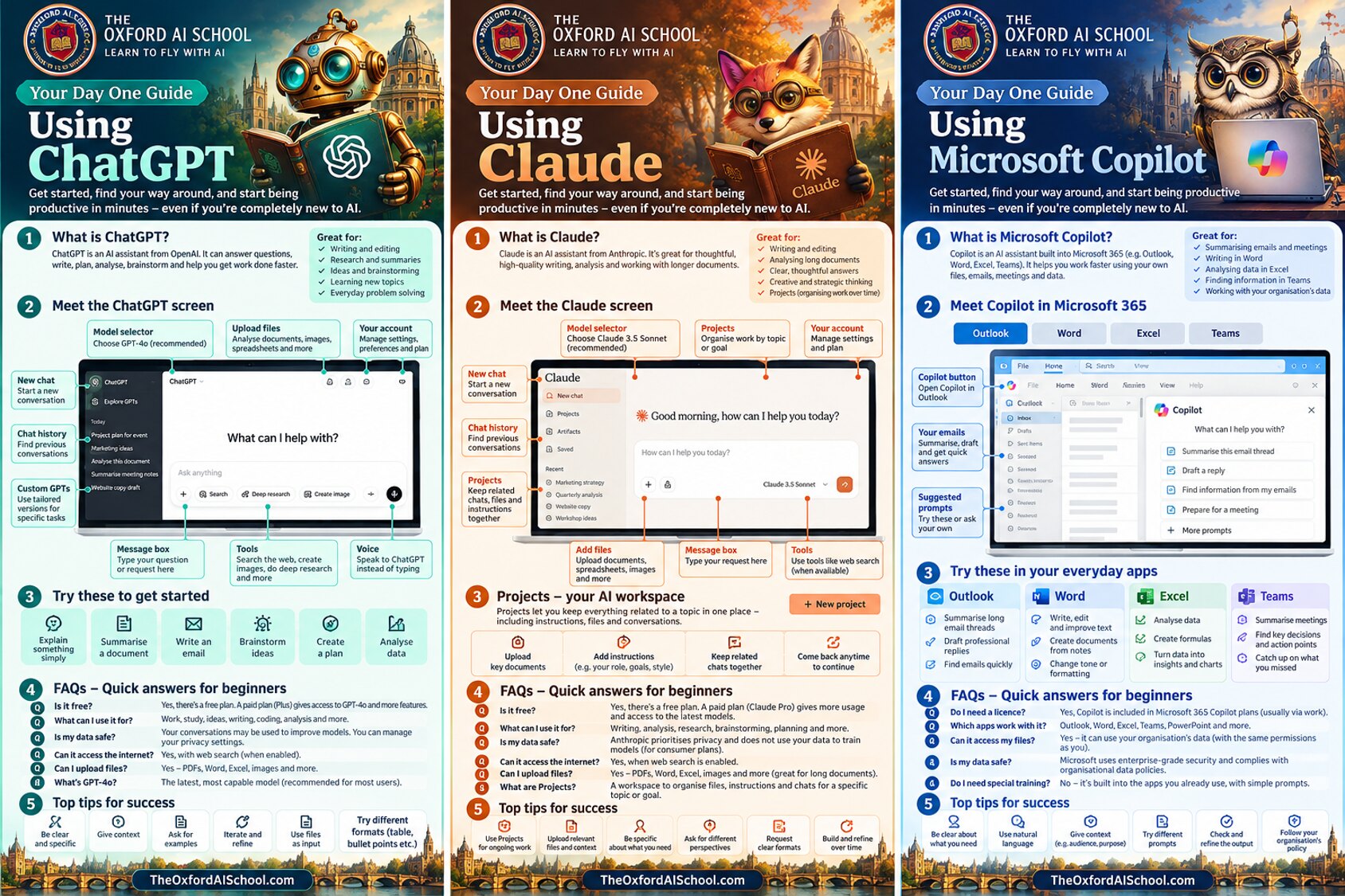
The hardest part of learning AI is the first ten minutes. You open ChatGPT, Claude or Copilot, see an empty box and a blinking cursor, and wonder what you’re supposed to type. This guide fixes that. It walks you through day one with each of the three most popular AI assistants – what they are, where everything is on screen, what to try first and how to get good answers – so you can stop wondering and start saving time today.
- Pick one tool – ChatGPT, Claude or Microsoft Copilot. Don’t try all three at once.
- Sign in on a free plan or with your work account, and find the new chat button and message box.
- Give it a real task from today’s to-do list – an email, a summary, a plan.
- Add context and a format – who it’s for, what good looks like, how you want it laid out.
- Refine and check – reply to improve it, then check facts before you use it.
How to start using AI in five steps
You don’t need technical skills, a course or a paid plan to start using AI. If you can write an email, you can use ChatGPT, Claude or Copilot. Here’s the five-step routine we teach complete beginners on their very first session.
Pick one AI tool
ChatGPT for an all-rounder, Claude for thoughtful writing and long documents, or Copilot if your working day lives in Outlook, Word, Excel and Teams. One tool, learned properly, beats three tools dabbled in.
Sign in and find your way around
Go to chatgpt.com or claude.ai and create a free account, or open Copilot inside Microsoft 365 with your work login. Find four things: the new chat button, the message box, the upload button and your chat history.
Give it a real task from your day
Skip the trick questions. Ask it to explain something you’re unsure about, summarise a document, draft an email, brainstorm ideas or turn a messy list into a plan. Real tasks show you real value.
Add context and ask for a format
Say who you are, who the output is for, what good looks like and how you want it laid out – a table, five bullet points, a 100-word email. Context is the single biggest difference between a vague answer and a useful one.
Refine, then check the result
Treat it like a conversation: “shorter”, “friendlier”, “add a deadline”. Then check facts, figures and names before you send anything. AI drafts; you decide.
ChatGPT vs Claude vs Copilot: which should you start with?
All three are AI assistants that understand plain English and can write, summarise, analyse and brainstorm. The difference is where they shine and where they live.
| Tool | Made by | Great for | Start here if… |
|---|---|---|---|
| ChatGPT | OpenAI | Writing and editing, research and summaries, ideas, learning new topics, everyday problem solving | You want a friendly all-rounder for work and home. |
| Claude | Anthropic | Thoughtful writing, analysing long documents, clear answers, strategic thinking, organising work in Projects | You write a lot or work with long reports, contracts and research. |
| Microsoft Copilot | Microsoft | Emails and meetings, writing in Word, analysing Excel data, finding information in Teams, working with your organisation’s data | Your organisation uses Microsoft 365 and you want AI inside the apps you already use. |
Still torn? Read our side-by-side comparisons of Claude vs ChatGPT and ChatGPT vs Copilot for business.
Day 1 using ChatGPT
What is ChatGPT?
ChatGPT is an AI assistant from OpenAI. It can answer questions, write, plan, analyse, brainstorm and help you get work done faster – all through a simple chat window.
ChatGPT is great for
- Writing and editing
- Research and summaries
- Ideas and brainstorming
- Learning new topics
- Everyday problem solving
Meet the ChatGPT screen
- New chat – start a fresh conversation for each new task.
- Chat history – find previous conversations in the left sidebar.
- Model selector – leave it on the recommended default to begin.
- Custom GPTs – tailored versions of ChatGPT for specific tasks.
- Message box – type your question or request here.
- Upload files – add documents, images and spreadsheets.
- Tools – search the web, create images, run deep research.
- Voice – speak to ChatGPT instead of typing.
- Your account – manage settings, data controls and your plan.
Try these to get started with ChatGPT
Six first prompts to copy
Explain something simplyExplain how a pension works in plain English, as if I’m new to the topic. Keep it under 200 words.
Summarise a document[Upload a file] Summarise this into five bullet points, then list any actions I need to take.
Write an emailWrite a polite email to a supplier asking to move our delivery from Tuesday to Thursday. Keep it short and friendly.
Brainstorm ideasGive me ten ideas for a team social that work for 12 people on a budget of £300.
Create a planTurn this messy list into a step-by-step plan for the week, ordered by priority: [paste list].
Analyse data[Upload a spreadsheet] What are the three most important trends in this data? Show them in a table.
ChatGPT FAQs for beginners
- Is ChatGPT free?
- Yes, there’s a free plan. Paid plans such as ChatGPT Plus give more usage and the latest models.
- What can I use it for?
- Work, study, ideas, writing, coding, analysis and much more.
- Is my data safe?
- On personal plans, conversations may be used to improve models – you can turn this off in your data controls. Business plans don’t train on your data by default.
- Can it access the internet?
- Yes, with web search turned on.
- Can I upload files?
- Yes – PDFs, Word, Excel, images and more.
Next step: ChatGPT for Dummies and what ChatGPT is and how it works.
Day 1 using Claude
What is Claude?
Claude is an AI assistant from Anthropic. It’s great for thoughtful, high-quality writing, analysis and working with longer documents – and its Projects feature keeps related work organised over time.
Claude is great for
- Writing and editing
- Analysing long documents
- Clear, thoughtful answers
- Creative and strategic thinking
- Projects that organise work over time
Meet the Claude screen
- New chat – start a new conversation.
- Chat history – find previous conversations.
- Projects – keep related chats, files and instructions together.
- Model selector – the recommended default is the right place to start.
- Message box – type your request here.
- Add files – upload documents, spreadsheets and images.
- Tools – use tools such as web search, when available.
- Your account – manage settings and your plan.
Projects: your AI workspace in Claude
Projects let you keep everything related to a topic in one place – instructions, files and conversations – so Claude already knows your context every time you come back.
How to set up your first Claude Project
- Create a new project for a client, role or recurring piece of work.
- Upload key documents such as guidelines, templates and past examples.
- Add instructions – your role, goals and preferred style.
- Keep related chats together and come back any time to continue.
Go deeper with how to use Claude Projects effectively.
Try these to get started with Claude
Four first prompts to copy
Analyse a long document[Upload a report] Read this and tell me the five most important points, any risks, and three questions I should ask the author.
Improve your writingHere’s a draft. Make it clearer and more confident without changing the meaning, and explain what you changed: [paste draft].
Think something throughI’m deciding whether to [decision]. Ask me five questions first, then give me the pros, cons and your recommendation.
Get perspectivesReview this proposal as a sceptical finance director, then as a busy customer. What would each push back on?
Claude FAQs for beginners
- Is it free?
- Yes, there’s a free plan. Claude Pro gives more usage and access to the latest models.
- What can I use it for?
- Writing, analysis, research, brainstorming, planning and more.
- Is my data safe?
- Anthropic prioritises privacy. On personal plans, check your privacy settings to control whether chats help improve models; Team and Enterprise plans don’t train on your data by default.
- Can it access the internet?
- Yes, when web search is enabled.
- Can I upload files?
- Yes – PDFs, Word, Excel, images and more. It’s great for long documents.
- What are Projects?
- A workspace to organise files, instructions and chats for a specific topic or goal.
Next step: Claude for Dummies, what Claude AI is and which Claude you need.
Day 1 using Microsoft Copilot
What is Microsoft Copilot?
Copilot is an AI assistant built into Microsoft 365 – Outlook, Word, Excel and Teams. It helps you work faster using your own files, emails, meetings and data, with your organisation’s existing security and permissions.
Copilot is great for
- Summarising emails and meetings
- Writing in Word
- Analysing data in Excel
- Finding information in Teams
- Working with your organisation’s data
Meet Copilot in Microsoft 365
- Copilot button – opens Copilot inside Outlook and the other apps.
- Your emails – summarise, draft and get quick answers.
- Suggested prompts – try these or ask your own.
- Side panel – chat with Copilot alongside your document or inbox.
Try Copilot in your everyday apps
Outlook
- Summarise long email threads.
- Draft professional replies.
- Find emails quickly.
Try in OutlookSummarise this email thread, list who is waiting on me and draft a short reply that confirms Friday’s deadline.
Word
- Write, edit and improve text.
- Create documents from notes.
- Change the tone or formatting.
Try in WordTurn my notes into a one-page project update with headings for progress, risks and next steps.
Excel
- Analyse data.
- Create formulas.
- Turn data into insights and charts.
Try in ExcelWhich three products had the biggest change in sales this quarter? Add a chart.
Teams
- Summarise meetings.
- Find key decisions and action points.
- Catch up on what you missed.
Try in TeamsWhat decisions were made in this meeting, and what actions were assigned to me?
Copilot FAQs for beginners
- Do I need a licence?
- Copilot inside your work apps is included in Microsoft 365 Copilot plans, usually provided by your employer.
- Which apps work with it?
- Outlook, Word, Excel, Teams, PowerPoint and more.
- Can it access my files?
- Yes – it can use your organisation’s data, with the same permissions you already have.
- Is my data safe?
- Microsoft 365 Copilot uses enterprise-grade security and follows your organisation’s data policies.
- Do I need special training?
- No – it’s built into the apps you already use, with simple prompts.
Next step: Copilot for Dummies and our Microsoft Copilot Deep Dive training.
Top tips for success with any AI tool
Whichever assistant you choose, the same habits get you better answers, faster.
- Be clear and specific about what you need.
- Give context – your role, the audience and the purpose.
- Ask for examples so you can see what good looks like.
- Iterate and refine with follow-ups instead of starting again.
- Use files as input – upload the real document, not a description of it.
- Request clear formats – tables, bullet points, word counts.
- Ask for different perspectives to stress-test your thinking.
- Check and refine the output and follow your organisation’s AI policy.
Treat AI like a bright new colleague on their first day: brief them properly, check their work, and they’ll get better every time.
What not to do on day one
- Don’t paste confidential information – client data, personal details or financials – into a personal account. See how to keep information safe using AI tools.
- Don’t trust it blindly. AI can sound confident and still be wrong. Learn how to judge the accuracy of AI information.
- Don’t give up after one bad answer. Add context, ask again, or try a different approach.
How to start using AI: frequently asked questions
How do I start using AI?
Pick one AI assistant – ChatGPT, Claude or Microsoft Copilot – sign in, and give it a real task from your day, such as summarising a document or drafting an email. Tell it who you are, who the output is for and what format you want, then reply with follow-ups to refine it. Check facts before you use the result. You can do all of this in under 30 minutes on a free plan.
Which AI should a beginner start with: ChatGPT, Claude or Copilot?
ChatGPT if you want a friendly all-rounder for writing, research, ideas and everyday questions. Claude if you mostly write, analyse long documents or want careful, thoughtful answers. Copilot if your organisation uses Microsoft 365, because it works inside Outlook, Word, Excel and Teams with your work data and security.
Are ChatGPT, Claude and Copilot free?
ChatGPT and Claude both have free plans, with paid plans (ChatGPT Plus and Claude Pro) that give more usage and the latest models. Microsoft Copilot has a free consumer version, while Copilot inside Microsoft 365 work apps usually comes through your employer’s Microsoft 365 Copilot licence.
Is my data safe when I use AI tools?
On personal plans, check the privacy or data controls settings, because conversations may be used to improve models unless you opt out. Business plans such as ChatGPT Business or Enterprise, Claude Team or Enterprise and Microsoft 365 Copilot don’t train on your data by default. Never paste confidential client, personal or financial information into a personal AI account, and follow your organisation’s AI policy.
Can I upload files to ChatGPT, Claude and Copilot?
Yes. ChatGPT and Claude accept PDFs, Word documents, spreadsheets, images and more, and Claude is particularly good with long documents. Microsoft 365 Copilot works with files you already have access to in Outlook, Word, Excel, Teams and SharePoint, using your existing permissions.
Can AI tools access the internet?
Yes, when web search is turned on. ChatGPT and Claude can search the web for current information and show their sources, and Copilot can ground answers in the web as well as your work data. Click through to the sources for anything important.
What should I ask AI on my first day?
Use a real task from your to-do list. Good first prompts are: explain a topic you’re unsure about in plain English, summarise a long document into five bullet points, draft a reply to an email, brainstorm ten ideas for a project, or turn a messy list into a step-by-step plan.
Do I need technical skills or special training to use AI?
No. ChatGPT, Claude and Copilot work in plain English, so if you can write an email you can use AI. Short, practical training helps you get better results faster and use it safely, but you can start today with no technical background – see how to learn AI without a technical background.
Keep learning: your day two reading list

The Oxford AI School helps complete beginners, business owners and teams across the UK learn to use ChatGPT, Claude and Copilot in a way that’s practical, fun, easy and relevant to their actual work.
Want a guided first day for you or your team? Our Basic AI Training takes complete beginners from zero to confident in a single session, or book a free 10-minute intro call to talk it through.