Every IT director I speak to has the same secret. They bought the Copilot licences, rolled out a cheerful announcement, and three months later usage looks like the office gym in February. Plenty of people tried it once, asked it for a poem about the quarterly figures, and went back to Outlook.
The best Microsoft Copilot prompts state a goal, give context, point to a source such as a file, email or meeting, and say what a good answer looks like. Microsoft's own guidance uses those four ingredients. Copilot can work from your own emails, files and meetings, so the strongest prompts tell it exactly which ones to use.
That is a shame, because Copilot has something ChatGPT does not: it can work from your emails, files and meetings. The right prompt turns it from a novelty into the colleague who has read everything. This page gives you twelve of those prompts, and the formula behind them. If you are new to prompting generally, our beginner's guide is the place to start.
Which Copilot are we talking about?
Microsoft uses the Copilot name for several things, which does not help. Features and licensing change often, so check what your organisation has switched on.
| Version | What it is | Typically |
|---|---|---|
| Copilot (consumer) | Microsoft's general AI assistant | Free to try, signed in with a personal account |
| Microsoft 365 Copilot Chat | Chat for work accounts, with enterprise data protection | Often included for work accounts; works mainly from the web and what you give it |
| Microsoft 365 Copilot | Copilot inside Word, Excel, Outlook, Teams and PowerPoint, grounded in your work data | A paid add-on licence |
The prompts below work best in the third one, where Copilot can reach your work. Most still work in Chat if you paste the material in.
The four-part Copilot prompt
Microsoft's own prompting guidance boils a good prompt down to four ingredients: goal, context, source and expectations. It is a cousin of our own Five-Part Brief, with one difference that matters: source.
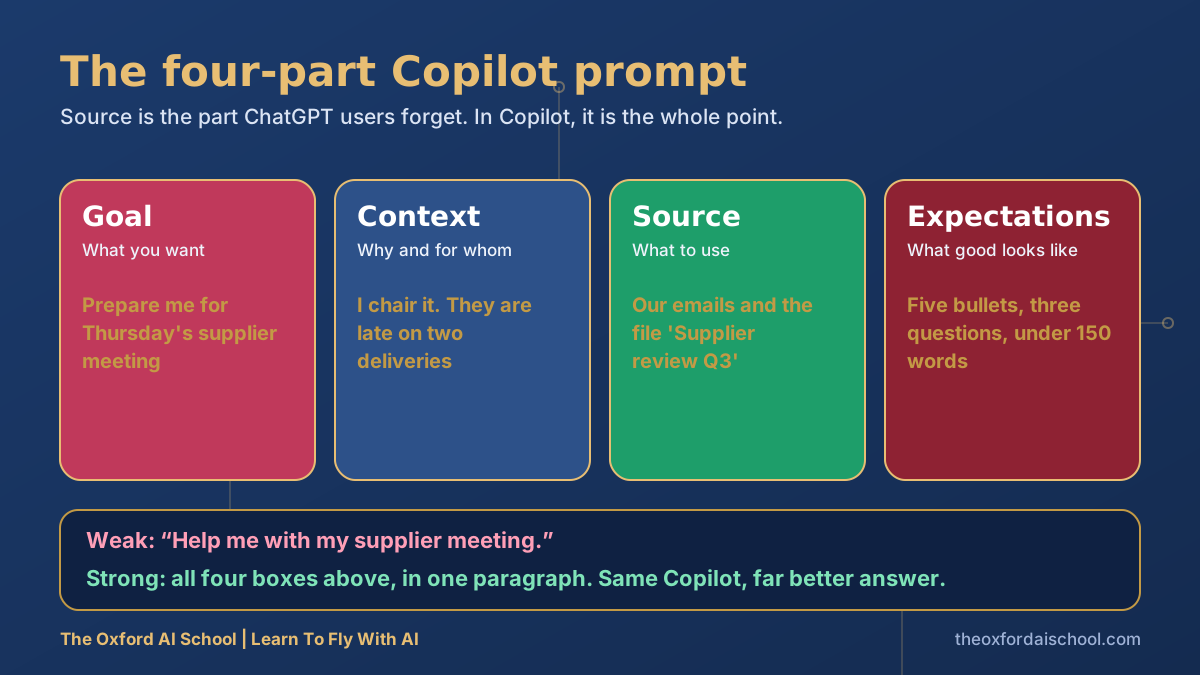
- Goal. What you want, in one line.
- Context. Why, and for whom.
- Source. Which email, file, meeting or chat it should use. Be specific, because Copilot can only use what you can already access.
- Expectations. Format, length and tone.
Twelve Microsoft Copilot prompts to copy
Catching up
1. Catch me up
Catch me up on [project name]. Use my emails, Teams chats and files from the last [two weeks]. Give me: where it stands in three lines, what has changed, what is waiting on me, and what is at risk. Name the source of each point.
Why it works: 'name the source' lets you check it, and spot when Copilot has found the wrong thread.
2. Summarise what I missed
I was off from [date] to [date]. Summarise what I missed in my inbox and Teams, ordered by what needs action first. Skip newsletters and automated notifications.
3. What do I owe people?
List everything I have promised to do for other people in the last [month], based on my emails and meetings. Group by person, and flag anything that sounds overdue.
Why it works: it finds the promises you made in passing, the ones that haunt Friday afternoons.
Preparing
4. Prep me for a meeting
I have a meeting with [name] at [time] about [topic]. Based on our recent emails, files and meetings, give me: the last three things we discussed, anything outstanding, and three questions worth asking.
5. Find the file
Find the document where we discussed [topic]. It was probably from around [month], involving [person]. Give me the three most likely matches with a one-line description of each.
6. Compare two documents
Compare [file 1] and [file 2]. Table of the differences that matter, ignoring formatting. Flag any contradiction in numbers, dates or commitments.
Making things
7. First draft from a document
Using [file], write a one-page summary for [audience]. Plain English, no jargon, under 300 words. End with the single decision we need from them.
8. Document to slides
Turn [file] into a six-slide presentation for [audience]. One idea per slide, a short headline each, and speaker notes in plain English. Suggest where a chart or image would help.
Why it works: 'one idea per slide' is the rule that stops a deck becoming a wall of bullets.
9. Notes into a plan
Here are my rough notes: [paste]. Turn them into a plan with objectives, actions, owners, dates and risks, as a table. Put anything you had to guess in a separate list.
Thinking harder
10. Plain English rewrite
Rewrite this so a non-specialist could act on it. Keep every fact. Cut every sentence that does not change what the reader will do. [paste]
11. Challenge my plan
Read [file]. Act as a sceptical director. What are the five weakest points, and which of them would you ask about first in a meeting?
12. Ask me first
Before you answer, ask me up to five questions about what I need. Wait for my replies. The task is: [task].
Why it works: the cure for vague prompts is making Copilot tell you what it is missing.
The one thing nobody tells you about Copilot
Copilot respects your permissions. It can only see what you can see. Which is brilliant, until you discover that a folder somebody shared with 'everyone' in 2019 contains the redundancy plan. Tidy your sharing before you roll Copilot out widely. Our guide to keeping information safe with AI tools is a good start, and the AI Policy Workshop covers it properly.
Common Copilot prompting mistakes
- Asking in general terms when you could point at a specific file or meeting.
- Never saying how long, or in what shape, the answer should be.
- Trusting a summary without clicking through to the sources it names.
- Treating it as a search box. It is closer to a fast, slightly literal assistant.
- Using it once, for a poem, and calling it a day.
More depth: Copilot prompts for Excel and Copilot prompts for Outlook and Teams go app by app. If you also use ChatGPT, compare with our twenty best ChatGPT prompts.
Want the app-by-app version? How to prompt Microsoft Copilot has examples for every Microsoft 365 app, and how to use Copilot effectively covers the settings and habits around them. Still deciding between tools? Read ChatGPT vs Copilot for business.
Best Copilot prompts: frequently asked questions
What are the best Microsoft Copilot prompts?
The best Copilot prompts state a goal, give context, point at a source such as a file, email or meeting, and say what a good answer looks like. Catch-up, meeting prep, summary and first-draft prompts save the most time.
How do I write a good Copilot prompt?
Use four ingredients: goal, context, source and expectations. Name the exact file, meeting or thread to use, and say the format and length you want.
What is the difference between Copilot and Copilot Chat?
Microsoft 365 Copilot Chat is a chat experience for work accounts, usually working from the web and what you give it. Microsoft 365 Copilot adds Copilot inside apps and grounding in your work data, as a paid licence. Check what your organisation has, as this changes.
Can Copilot see all my company's files?
It can only use what you already have permission to see. That makes tidy permissions important, because Copilot can surface content that was shared too widely.
Is Copilot better than ChatGPT?
They suit different jobs. Copilot's strength is working from your own emails, files and meetings inside Microsoft 365. ChatGPT is a flexible general assistant. Many people use both.
Where can my team learn Copilot properly?
Our Microsoft Copilot Deep Dive teaches teams to use Copilot on their own real work, and our Basic AI Training covers the foundations.

Harry Lang runs The Oxford AI School in Witney, Oxfordshire. A former CMO, he now teaches teams and individuals across the UK to use AI in plain English, on their own real work. Email Learn@TheOxfordAISchool.com.