Every business has one. The spreadsheet. Forty-one tabs, a colour code nobody remembers, and a cell in the corner marked 'DO NOT TOUCH' by somebody who has since left to become a goat farmer.
The best Copilot prompts for Excel name the table, the column and the exact result you want, for example 'add a column showing margin as a percentage of revenue'. Copilot works best on data formatted as a proper table with clear headers. Always check formulas and totals against a few figures you can verify by hand.
Copilot in Excel promises to make sense of it. In my experience it genuinely can, with two conditions: you ask the right way, and you check the answer like an auditor who has had a bad week. This page covers both. For the wider Copilot toolkit, start with our best Copilot prompts.
What can Copilot do in Excel?
Capabilities and licensing change, so confirm what your version offers. At the time of writing, Copilot in Excel can typically explain what is in a sheet, suggest and write formulas, add calculated columns, create charts and pivot-style summaries, and highlight or sort data. It is far less reliable on messy, merged-cell chaos.
Four checks before you ask Copilot anything
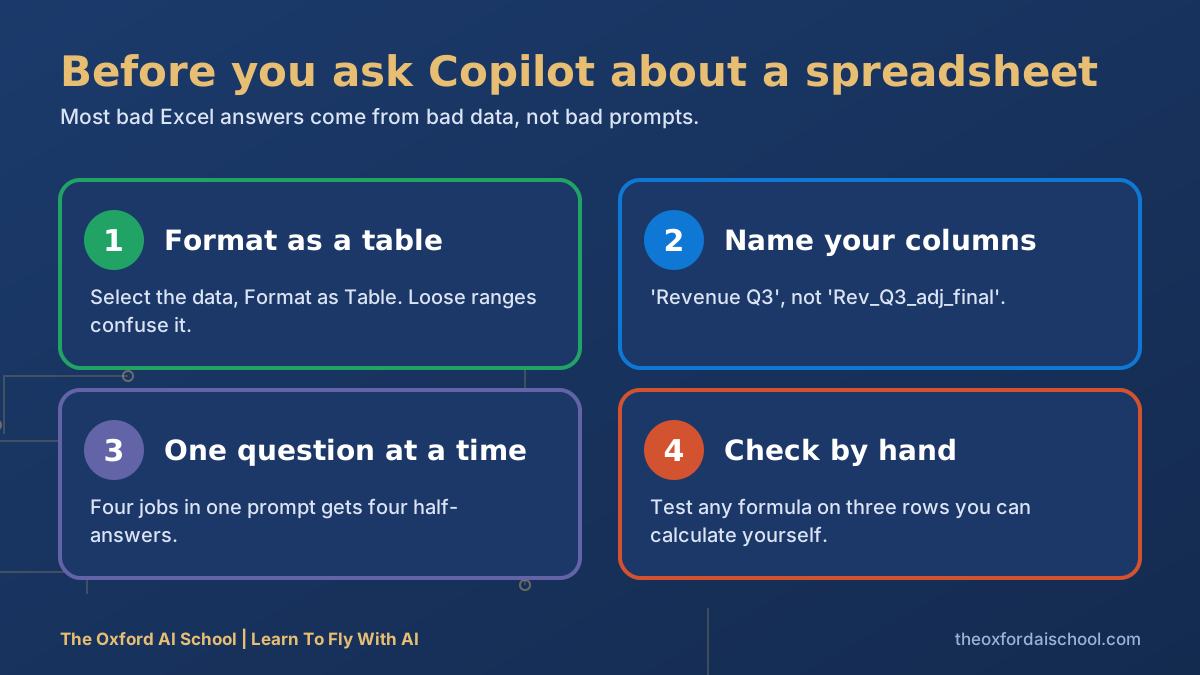
- Format your data as a table. Copilot generally works best on proper Excel tables, not loose ranges. Select the data and use Format as Table.
- Give every column a clear header. 'Rev_Q3_adj_final' tells Copilot nothing. 'Revenue Q3' does.
- Ask one question at a time. A prompt with four jobs gets four half-answers.
- Verify. Test any formula on three rows you can calculate by hand.
Requirements such as saving the file to OneDrive or SharePoint have applied to Copilot in Excel in the past. Check Microsoft's current guidance for your version.
Fourteen Copilot prompts for Excel
Understanding a sheet you did not build
1. Explain this sheet
Explain what this workbook does in plain English. What does each sheet contain, what are the main inputs, and where are the key outputs? Flag anything that looks hard-coded or unusual.
Why it works: it gives you a map before you touch anything.
2. Explain this formula
Explain the formula in cell [cell] step by step, as if to someone who knows Excel basics but not this model. Tell me what would break if I changed [input].
3. Flag the problems
Look for likely errors in this table: inconsistent formulas down a column, numbers stored as text, blanks in key columns, and values that look out of range. List them with cell references.
Cleaning data
4. Clean up this column
In the [column] column, remove extra spaces, standardise capitalisation to Title Case, and fix obvious spelling variations of the same company name. Show me what you would change before you change it.
Why it works: 'show me before you change it' stops silent damage to your data.
5. Find duplicates
Highlight rows where [column A] and [column B] are both duplicated. Do not delete anything. Give me a count.
6. Flag missing data
Which rows are missing a value in [column]? Highlight them and tell me what percentage of the table they represent.
Calculating
7. Add a calculated column
Add a column called 'Margin %' that calculates ([Revenue] - [Cost]) / [Revenue], formatted as a percentage with one decimal place.
Why it works: it names the new column, the exact calculation and the format. Nothing left to guess.
8. Write the formula
I need a formula that returns [what], using [columns], but only when [condition]. Give me the formula and explain it in one line.
9. Variance analysis
Add columns showing variance to budget in pounds and as a percentage for each row. Highlight any variance over 10% in amber and over 20% in red.
Finding the story
10. Find the outliers
Which values in [column] look unusual compared with the rest? List the five most extreme, with the row, and suggest one possible innocent explanation for each.
11. Summarise by category
Summarise total [measure] by [category], largest first, with each category's percentage of the total.
12. Rank the results
Rank the top ten [items] by [measure]. Show rank, name, value and change since [previous period].
13. Build a chart
Create a chart showing [measure] by [month], with a clear title and axis labels. Keep it to one chart and tell me what the main takeaway is in one sentence.
14. Five insights for the board
Based on this table, give me five insights a board would care about, each with the number that supports it and a cell reference. Flag anything you are unsure of.
Why it works: forcing a cell reference per insight makes every claim checkable.
How to check what Copilot gives you
| Check | How | Takes |
|---|---|---|
| Formula logic | Test on three rows you can work out by hand | Two minutes |
| Totals | Compare against a figure you trust, such as the ledger | Two minutes |
| Ranges | Click the formula and check the highlighted cells | One minute |
| Rounding and units | Look for pounds versus thousands, and percentages versus decimals | One minute |
| Anything going to a client | Second pair of eyes | Priceless |
Copilot is excellent at doing the dull calculation and quite capable of doing it slightly wrong. Treat it as a fast junior: lovely work, still needs a review. If you want the same idea applied to another tool, see our guide to prompt generators for writing better requests faster.
Do not paste confidential client data into any AI tool unless your organisation's policy allows it. Copilot working inside your Microsoft 365 tenant follows your organisation's settings, which is one reason finance teams often prefer it to a public chatbot. Check with your IT team, and read our guide on how to write an AI policy.
For the wider picture on spreadsheets and numbers, read AI for data analysis. If Copilot is new to you, Copilot for Dummies explains the basics, and the new features of Copilot keeps track of what has changed.
Copilot prompts for Excel: frequently asked questions
What are the best Copilot prompts for Excel?
The best Copilot prompts for Excel name the table, the column and the exact result you want, such as adding a margin percentage column, highlighting variances over 10% or summarising totals by category.
Why is Copilot not working on my Excel data?
Copilot generally works best on data formatted as an Excel table with clear headers. Messy ranges, merged cells and unnamed columns cause problems. Licence and file-location requirements can also apply, so check Microsoft's current guidance.
Can Copilot write Excel formulas?
Yes. Describe the result you want and the columns involved, and ask it to explain the formula. Always test the formula on rows you can calculate by hand.
Can I trust Copilot's numbers in Excel?
Treat them as a fast first pass. Copilot can misread a column or write a subtly wrong formula, so verify totals and test formulas before anything goes to a client or board.
Is Copilot in Excel safe for confidential data?
That depends on your organisation's licence and settings. Microsoft 365 Copilot works within your tenant and your permissions, but you should confirm your policy with IT before using client or personal data.
Where can accountants and finance teams learn this?
Our AI for Accountants programme and Microsoft Copilot Deep Dive teach checked, practical AI workflows for finance work.

Harry Lang runs The Oxford AI School in Witney, Oxfordshire. A former CMO, he now teaches teams and individuals across the UK to use AI in plain English, on their own real work. Email Learn@TheOxfordAISchool.com.