The modern working week is eleven hours of meetings, three of which could have been emails and one of which could have been silence. The rest is the inbox, which refills overnight like a pond.
The best Copilot prompts for Outlook and Teams summarise long threads, draft replies from your bullet points, adjust tone, prepare you for meetings and turn recordings into decisions and actions. Name the thread or meeting, say who the output is for, and ask for owners and dates. Meeting recaps usually need transcription switched on.
Copilot will not cancel the meetings. It will, however, read the 63-message thread you were copied on in March and tell you what was decided. This page covers fourteen prompts for Outlook and Teams, and a week-long plan to make them habit. First time using Copilot? Start with the best Copilot prompts.
What can Copilot do in Outlook and Teams?
Features vary by licence and change often, so confirm what you have. Typically Copilot can summarise long email threads, draft and rewrite messages, offer coaching on tone, catch you up on chats, and, in Teams meetings, produce summaries and action lists.
Meeting recaps normally depend on transcription or recording being switched on, and on your organisation's settings. Tell people when you are using it, and follow your policy on recording.
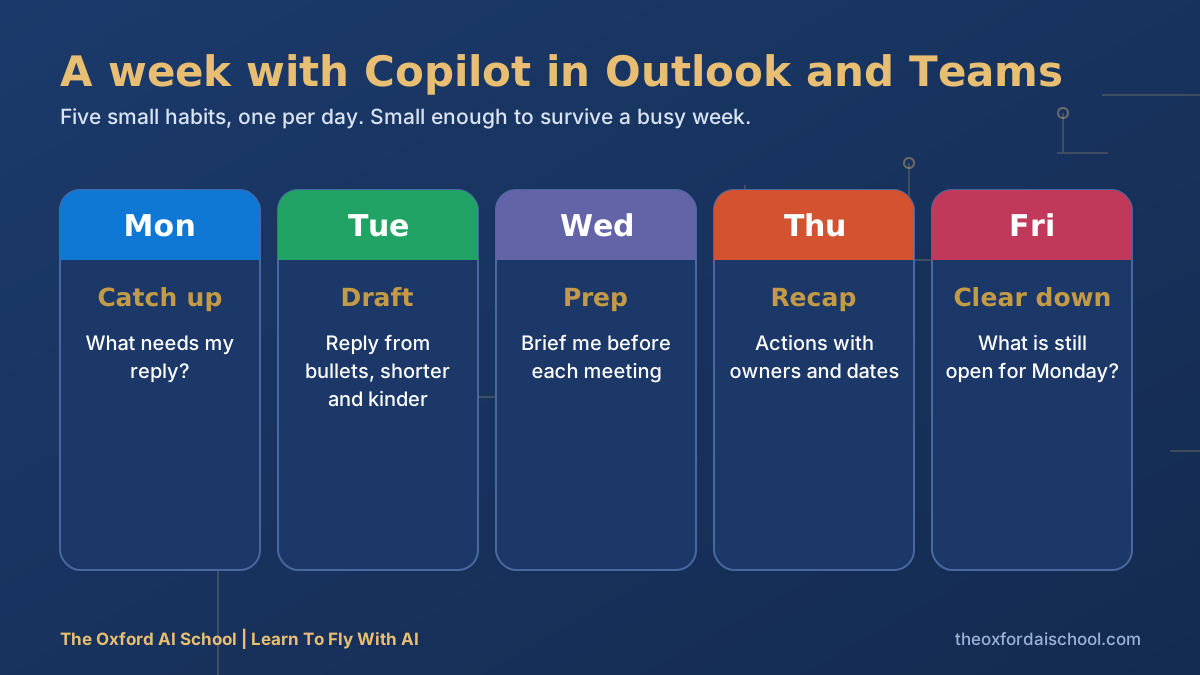
A week with Copilot in Outlook and Teams
Copilot prompts for Outlook
Reading less
1. Summarise this thread
Summarise this email thread in four lines: what was asked, what was decided, what is still open, and what is expected from me. Name who said what where it matters.
Why it works: 'what is expected from me' is the only line you actually needed.
2. What needs my reply?
From my inbox over the last [three days], list the emails that need a reply from me, most urgent first. Give the sender, the ask and a suggested one-line response.
Writing faster
3. Draft from bullets
Write a reply to this email. Points to make: [bullets]. Tone: [warm / direct / formal]. Under 120 words. Do not start with 'I hope this finds you well'.
Why it works: banning the opening cliché is the quickest way to sound like a person.
4. Shorter and kinder
Rewrite my draft so it is half the length and a little warmer, without losing the deadline or the request. [paste draft]
5. Say no politely
Draft a reply declining [request]. I want to keep the relationship. Offer [alternative] instead, and be clear this is a no for now, not a maybe.
6. Chase without nagging
Write a follow-up to [name] about [thing]. It is [number] days overdue. Firm, friendly, with a clear date and one easy way for them to reply.
Copilot prompts for Teams meetings
Before
7. Prep for the meeting
I am meeting [name or team] at [time] about [topic]. Based on our recent emails, chats and previous meetings, summarise where we left things, what is outstanding, and three questions I should ask.
8. Write the agenda
Draft a 30-minute agenda for a meeting about [topic] with [attendees]. Each item needs a time, an owner and a stated outcome: decide, inform or discuss. Cut anything that could be an email.
Why it works: 'decide, inform or discuss' makes every agenda item justify its slot.
After
9. Recap this meeting
Recap this meeting in six lines: decisions made, actions agreed, anything left unresolved, and any disagreement worth noting.
10. Actions with owners
List every action from this meeting as a table: action, owner, due date. If an owner or date was not stated, write 'unassigned' rather than guessing.
Why it works: 'unassigned' is the most useful word in any meeting recap.
11. Follow-up email
Write a follow-up email to the attendees from this meeting. Decisions first, then actions with owners and dates, then the date of the next conversation. Under 150 words.
When you were not there
12. What did I miss?
I missed this meeting. In under 100 words, what do I need to know, and is there anything I need to do or respond to?
13. Decision log
Across these meetings and chats about [project], list every decision made, when, and by whom. Flag any that seem to contradict each other.
14. Friday clear-down
Review my week. Which commitments have I made that are still open, which emails have I not answered, and what should I deal with first on Monday?
Good manners when AI reads your meetings
- Tell attendees if you are recording or transcribing, and follow your organisation's rules.
- Check an AI recap before you send it round. Names, numbers and tone can slip.
- Do not let a summary replace a conversation that needs one.
- Keep sensitive HR or legal discussions off AI tools unless your policy clearly allows them.
Need a policy to point to? Our guide to writing an AI policy and the AI Policy Workshop help. For the spreadsheet side of Copilot, see Copilot prompts for Excel.
Writing the emails yourself, with AI as a second pair of hands? Using AI to write better emails and proposals covers tone and structure, and how to learn advanced Copilot is the next step once these prompts are routine.
Copilot prompts for Outlook and Teams: frequently asked questions
What are the best Copilot prompts for Outlook?
The best ones summarise long threads, list what needs your reply, draft responses from your bullet points, and adjust tone. Name the thread, say who the reply is for and set a word limit.
Can Copilot summarise a Teams meeting?
Yes, typically, if transcription or recording was on and your organisation allows it. Ask for decisions, actions with owners and dates, and anything unresolved.
Can Copilot write my emails for me?
It can draft them well from your bullet points. Always read and edit before sending, so the email sounds like you and every fact is right.
How do I catch up after holiday with Copilot?
Ask it to summarise your inbox and chats from the dates you were away, ordered by what needs action first, and to skip newsletters and automated notices.
Do I need a special licence for Copilot in Outlook and Teams?
Often yes. Copilot inside the apps is usually a paid add-on, while some chat features may be included. Licensing changes, so check with your IT team.
Where can my team learn Copilot for email and meetings?
Our Microsoft Copilot Deep Dive module works through email, meetings and documents on your own real work.

Harry Lang runs The Oxford AI School in Witney, Oxfordshire. A former CMO, he now teaches teams and individuals across the UK to use AI in plain English, on their own real work. Email Learn@TheOxfordAISchool.com.