Perplexity field guide · Part 2 of 5
New Perplexity features
What changed, who it helps and which buttons can wait until after lunch.
Feature announcements are rather like hotel breakfast buffets. There is plenty on offer, but you do not need to put all of it on one plate. Here is what the recent Perplexity updates mean in practice, checked on 5 November 2026.

The useful changes at a glance
This guide covers selected releases from August to October 2026. It is a practical update, not a claim that every account has every feature.
| Change | Useful for | Check first |
|---|---|---|
| Computer Automations | Recurring monitoring and briefings | Schedule, connected-app access and review steps |
| Inline visualisations | Exploring a chart or explaining a concept | Underlying data and labels |
| Ultrafast in Computer | Time-sensitive work on eligible models | Max web access and extra credits |
| Projects | Ongoing work with files and shared context | Membership and connector scope |
| Connector access controls | Enterprise administration | Plan eligibility and role settings |
The latest notes we checked were published on 19 October. Check the official changelog for subsequent changes.
Automations: give recurring research a proper brief
Computer Automations can run scheduled work or respond to events in connected apps. The Perplexity release notes: 5 October 2026 release describes ongoing workflows with review pauses.
My first test would be a weekly public-source supplier update. Specify what counts as a material change, which sources to use and where a human should review the result. “Keep an eye on everything” is not a brief. It is what happens when nobody volunteers to own the meeting.
An automation brief to test
Prepare a weekly summary of material changes on these public websites: [URLs].
Include the source, publication date, what changed and why it matters to [audience].
Separate confirmed changes from uncertainty.
Draft the report for my review. Do not send messages or make purchases.
Run the task manually first. Agree what a useful result looks like before scheduling it. A disappointing report delivered every Monday remains a disappointing report.
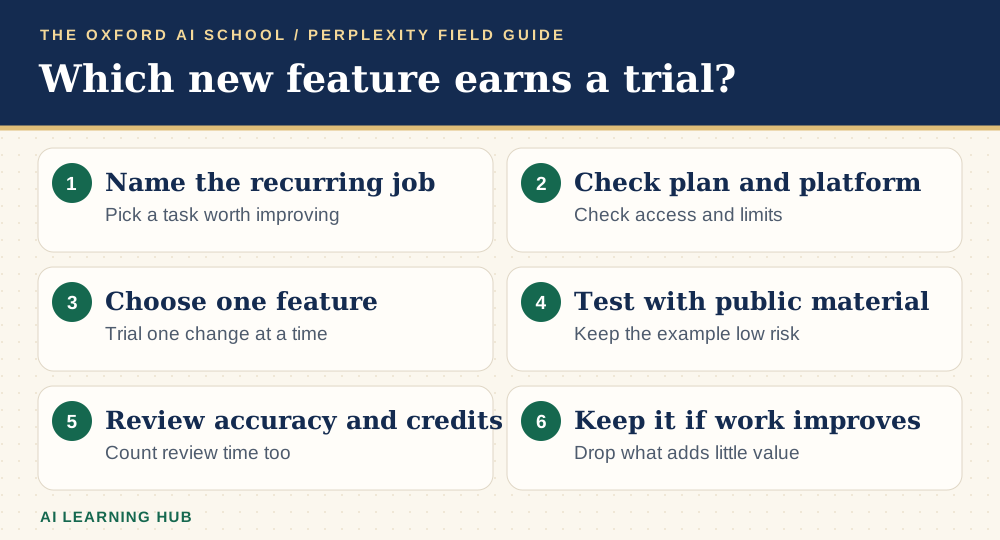
Read the infographic as text
- Name the recurring job: Pick a task worth improving.
- Check plan and platform: Check access and limits.
- Choose one feature: Trial one change at a time.
- Test with public material: Keep the example low risk.
- Review accuracy and credits: Count review time too.
- Keep it if work improves: Drop what adds little value.
Inline visualisations: explore the question behind the chart
The same October release introduced interactive visualisations inside Computer threads. That can help when a static paragraph leaves you squinting at the idea.
A learner could explore a process; an operations team could inspect a small, approved dataset. Ask what each axis means, where the values came from and which conclusions the data cannot support. Move a control and explain what changed.
Use this for understanding before using it for persuasion. A chart can be beautifully wrong. It often comes with excellent colours.
Faster Computer options: speed has a bill
The Perplexity release notes: 19 October 2026 update added Ultrafast for GPT-6 Astra and GPT-6.1 Sol in Computer on the web for Max subscribers. It uses more credits than Normal or Fast.
Test it on work where the delay actually matters. Compare the same small task at your normal setting and the faster setting. Record time, quality and credit use. Saving a few seconds on a task you do twice a month may not deserve an internal launch campaign.
The 5 October notes also added GPT-6.1 Sol for eligible paid users and Claude Opus 5.5 for Standard-effort Computer work on eligible paid personal accounts. Treat model names as access details, not a substitute for checking the result.
Projects and connector controls: useful housekeeping
The Perplexity: Projects and Model Council release describes Projects as the evolution of Spaces in Computer, bringing files and working context into ongoing projects. Older tutorials may still use the previous name.
Create one project around one job, such as a launch or a research brief. Keep dated source files and name the decision owner. A shared workspace needs a little gardening. Otherwise it becomes a loft with a search box.
The 19 October release also added role-based connector controls for sales-assisted Enterprise plans, plus local-folder attachment for Projects in the Mac app from version 26.38. These are specific account and platform features. They are not general promises about all desktop installations.
What should different readers try first?
New users: learn the basic question-and-source-check routine before exploring Computer. Students and curious readers: try a visual explanation and test whether you can explain it back. Small businesses: trial one recurring public-source briefing. Teams: agree access and review responsibilities before connecting work systems.
The October release also includes developer-facing Decisions API updates. Most readers can leave those to the person building the software. You are permitted to skip a feature without falling behind civilisation.
Keep a short trial log: task, old method, new method, checking time and reason to keep it. For guided practice, see AI Basics Deep Dive. For the longer running product-update article, see our existing Perplexity release guide.
Keep learning: Perplexity field guides
The five-part series
More Perplexity guides from the AI Learning Hub
Sources and product notes
Official product information checked on . Examples and prompts are for practice. Access and controls can change by plan, platform and account.
Frequently asked questions
Are all new Perplexity features free?
No. Features can depend on your plan, device, region, rollout and organisation settings. Check the linked release notes and your account before planning a workflow around one.
What happened to Spaces?
Perplexity’s August 2026 Computer release describes Projects as the evolution of Spaces with automatic migration. Older guides and different product surfaces may still use older wording.
Is Ultrafast always the best option?
No. It prioritises speed and consumes more credits. Compare output quality, completion time and credit use on your own task.
Should I automate research immediately?
Run it manually first, check the sources and define what should trigger review. Schedule it once you have a useful and repeatable result.
When was this guide checked?
The official sources were checked on 5 November 2026. The latest release covered here is dated 19 October 2026. Follow the official changelog for later updates.